Introduction
why does my search engine keep changing to yahoo
Here’s the important thing to understand upfront: Yahoo itself is not a virus. It is a legitimate, long-established search engine. The problem is not Yahoo — it’s the unauthorized software that keeps forcing your browser to use it without your permission.
Why does my search engine keep changing to Yahoo even after you switch it back? Because simply changing the setting doesn’t fix the underlying cause. Something on your device — a browser hijacker, a rogue extension, bundled software, or a misconfigured sync setting — is actively overriding your preferences every time you try to fix it.
The good news: this problem is completely fixable. In this guide, you will learn:
- Exactly why your search engine keeps switching to Yahoo
- The difference between a browser hijacker and a simple settings issue
- Step-by-step fixes for every major browser — Chrome, Firefox, Edge, and Safari
- How to permanently remove the Yahoo redirect from Windows and Mac
- How to prevent it from ever happening again
Related Reading: How to Change Your Default Search Engine | What’s SEO? The Ultimate Beginner’s Guide
Table of Contents
- Why Does My Search Engine Keep Changing to Yahoo?
- Why This Problem Keeps Coming Back
- Is Yahoo a Virus? What You Need to Know
- How to Fix the Yahoo Search Redirect — Step by Step
- How to Remove the Yahoo Redirect from Every Browser
- How to Remove Yahoo Redirect from Windows and Mac
- Examples and Case Studies
- Best Tools to Remove the Yahoo Redirect Virus
- Common Mistakes When Fixing the Yahoo Search Redirect
- How to Prevent Your Search Engine from Changing to Yahoo Again
- FAQs
- Conclusion
- Actionable Takeaways
Why Does My Search Engine Keep Changing to Yahoo?
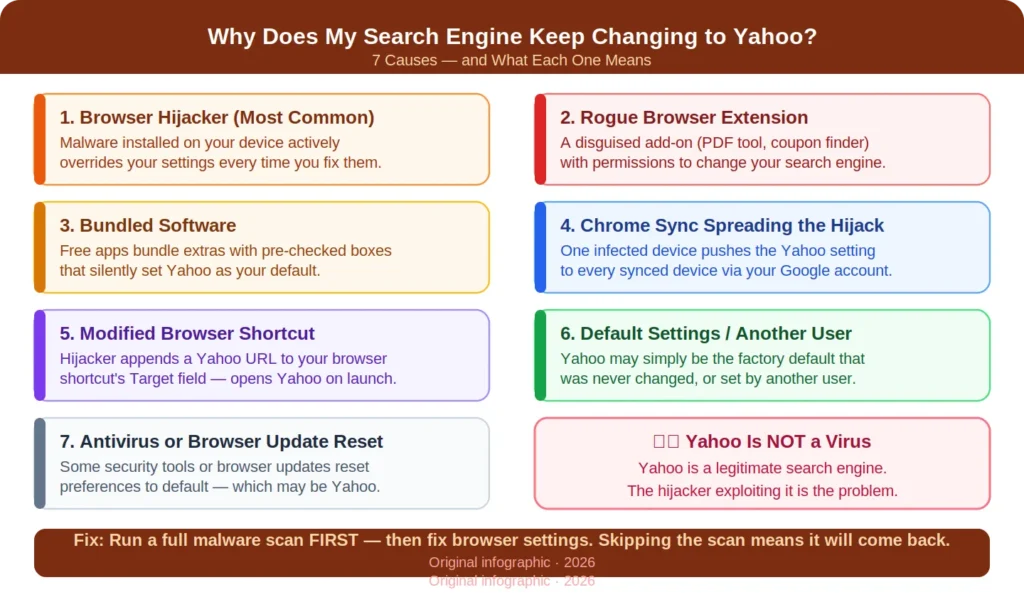
Why does my search engine keep changing to Yahoo? There are several possible causes — and identifying the right one is the key to fixing it permanently. Here are all the reasons your browser may be defaulting to Yahoo without your permission:
Cause 1 — A Browser Hijacker
This is the most common cause by far. A browser hijacker is a type of Potentially Unwanted Program (PUP) — a piece of software that modifies your browser settings without your meaningful consent. Once installed, it forces Yahoo (or a page that redirects through Yahoo) to become your default search engine, homepage, and new tab page.
Every time you try to switch back the hijacker keeps overriding your settings . This is why just changing the search engine in your settings doesn ’t solve the problem . You are still in the background undoing your own changes.
As of June 2025, security researchers at PCRisk confirmed that the search.yahoo.com browser hijacker has continued to evolve, with malicious programs now hijacking all installed browsers simultaneously — not just a single browser — and in some cases storing the forced Yahoo preference in synced browser profiles so it propagates across every device you own.
Cause 2 — A Malicious Browser Extension
Browser extensions are small programs that add features to your browser. Most are legitimate and harmless. Some are not. Rogue extensions — often disguised as grammar checkers, PDF converters, coupon finders, or video downloaders — request broad permissions during installation that allow them to “read and change all data on websites you visit” and “manage your apps, extensions, and themes.”
Once granted those permissions, a malicious extension can silently set Yahoo as your default search engine, change your new tab page, and even override manual settings you make in your browser. The extension may not be branded with the Yahoo name or logo, making it difficult to identify.
Cause 3 — Bundled Software Installation
When you install free software — PDF tools, media players, download managers, screen recorders, or any software from an unofficial source — the installer frequently bundles additional programs. One of those bundled extras may be a browser extension or lightweight application designed to change your search engine to Yahoo.
These bundled installs typically include a pre-checked checkbox during setup — something like “Set Yahoo as my default search engine and homepage” — that many users skip past without reading. Once checked, the change is technically “consented to,” even though most users never noticed it. The Yahoo redirect continues to appear even after you fix your browser settings because the bundled application keeps resetting them.
Cause 4 — Chrome Sync Spreading the Problem
If you use Google Chrome with sync enabled, your browser settings — including your default search engine and installed extensions — sync across every device signed in to your Google account. If one device becomes infected with a browser hijacker or a rogue extension that forces Yahoo, that setting can silently push to your laptop, desktop, phone, and tablet.
This creates a frustrating loop: you fix the problem on your laptop, but the infected setting from your phone resyncs and brings it back. You have to address every synced device and the sync settings themselves to break the cycle.
Cause 5 — A Modified Browser Shortcut
Some browser hijackers modify the actual shortcut file you use to open your browser. They add a target URL — like a Yahoo redirect page — at the end of the shortcut’s file path. Every time you click that shortcut, your browser opens and immediately navigates to Yahoo or a page that redirects to it, regardless of your search engine settings.
This is a particularly sneaky method because it survives browser resets and extension removals. If your browser always opens on Yahoo but your settings show the correct search engine, check your shortcut.
Cause 6 — Default Browser Settings or Another User
Not every case of Yahoo appearing as the default search engine is malware-related. Some browsers — particularly older versions or certain pre-configured installations — ship with Yahoo as the default. If you’ve never manually set your preferred search engine, Yahoo may simply be the factory default that was never changed.
Similarly, if multiple people use the same computer or browser profile, another user may have set Yahoo as their preference — or you may be accidentally using someone else’s profile.
Cause 7 — Antivirus Software or Browser Update Resetting Settings
Some antivirus programs include browser protection features that can reset browser settings — including the default search engine — when they detect what they perceive as a suspicious change. Similarly, major browser updates occasionally reset certain preferences to default. If your search engine keeps reverting to Yahoo after updates, this may be the cause.
Why This Problem Keeps Coming Back
Why does my search engine keep changing to Yahoo even after you switch it back manually? Because changing the search engine in your settings only treats the symptom — not the cause.
In the event you have a browser hijacker or rogue extension installed on your device, it watches your browser settings and takes active measures to re-assert its modifications if you try to override them. Some hijackers use “persistence mechanisms” — techniques that allow them to survive browser resets, device reboots, and even software uninstalls by reinstalling themselves or restoring their settings from a backup.
The cycle looks like this:
- You open your browser → Yahoo appears
- You go to settings and switch back to Google → Problem fixed
- You close and reopen the browser → Yahoo appears again
- Repeat forever
The only way to permanently stop this cycle is to remove the underlying cause — not just change the surface-level setting.
Is Yahoo a Virus? What You Need to Know
Yahoo is not a virus. This is one of the most important things to understand before you start troubleshooting. Yahoo Inc. is a legitimate company that has operated a search engine since 1995. Using Yahoo is perfectly safe.
What’s unsafe is the method by which Yahoo has been set as your default. The Yahoo redirect “virus” is technically a browser hijacker — a type of Potentially Unwanted Program. It is not a traditional virus in the sense that it doesn’t replicate itself or destroy files. What it does is:
- Hijack your browser settings to redirect all searches through Yahoo
- Route your searches through a third-party server before they reach Yahoo, where your queries can be tracked, data collected, and ads injected
- Generate advertising revenue for the hijacker’s creators from every search you make
- Potentially expose you to additional malware through the redirect chain
Why Yahoo specifically? Because Yahoo operates a legitimate advertising program that pays partners for search traffic. Browser hijacker creators exploit this by funneling stolen traffic through Yahoo — earning ad revenue from your searches while using Yahoo’s trusted brand to avoid raising suspicion. Cybernews research confirms that antivirus tools detect and remove 99% of Yahoo redirect threats when a full system scan is performed.
How to Fix the Yahoo Search Redirect — Step by Step
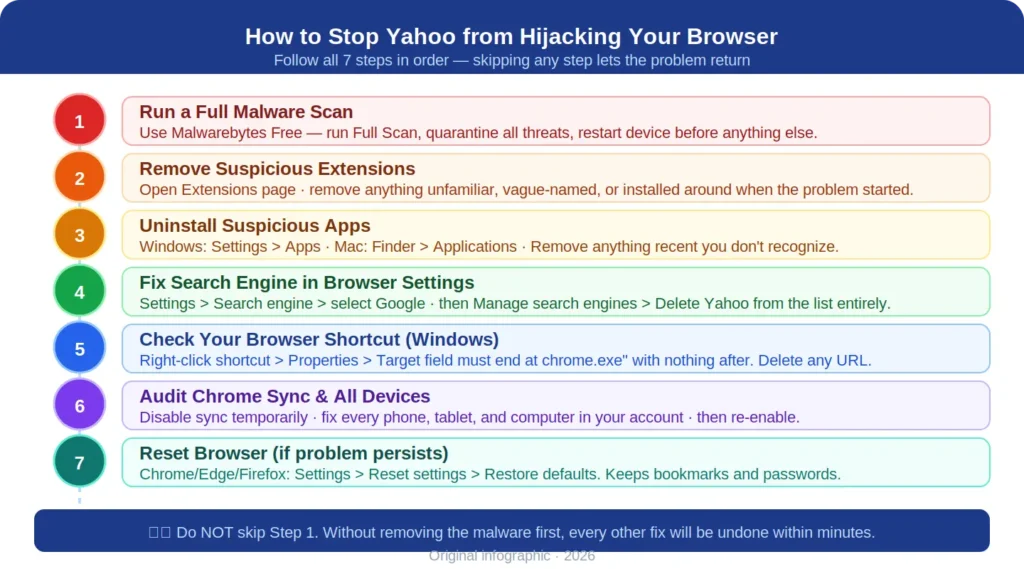
Why does my search engine keep changing to Yahoo, and how do you stop it for good? Follow these steps in order. Skipping steps — especially Step 1 — is the most common reason the problem keeps returning.
Step 1 — Run a Full Malware Scan First
Before touching any browser settings, run a complete malware scan on your device. If the underlying hijacker is not removed first, every browser fix you make will be undone within minutes.
Use a reputable tool:
- Malwarebytes (Windows/Mac) — Free version handles most browser hijackers effectively. Download at malwarebytes.com
- Bitdefender or Norton 360 — Comprehensive paid options with real-time protection
- Built-in Windows Security — Run “Windows Security > Virus & threat protection > Full scan” on Windows 11/10
Run a full scan — not a quick scan. Quarantine or remove everything flagged. Restart your device before proceeding.
Step 2 — Audit and Remove Suspicious Browser Extensions
Open your browser’s extensions or add-ons page and review every installed extension. Remove any that:
- You don’t remember installing
- Have vague names like “Search Assistant,” “Web Boost,” “Easy Search,” or “Browser Helper”
- Were installed around the same time the Yahoo redirect started
- Request unusually broad permissions
The rogue extension causing the redirect may not mention Yahoo by name. When in doubt, remove it — you can always reinstall legitimate extensions afterward.
Step 3 — Check and Remove Suspicious Apps
On Windows: Open Settings > Apps > Installed Apps. Sort by installation date and look for anything unfamiliar installed around when the problem started. Right-click and uninstall anything suspicious.
On Mac: Open Finder > Applications. Look for programs you don’t recognize. Drag suspicious apps to the Trash and empty it.
Common culprits include: PDF converters, download managers, browser “optimizers,” weather apps, and free game installers downloaded from unofficial sources.
Step 4 — Fix Your Search Engine Settings in the Browser
Once the malware and suspicious extensions have been removed, manually correct your browser’s search engine setting. Detailed browser-by-browser instructions are in the next section.
Step 5 — Delete Yahoo from the Search Engine List
After setting your preferred engine as the default, go into your browser’s “Manage search engines” section and permanently delete Yahoo from the list. This prevents hijackers from re-enabling it by simply switching the default.
Step 6 — Check Your Browser Shortcut (Windows)
Right-click your browser shortcut on the desktop or taskbar. Select Properties. In the Target field, the path should end cleanly at the browser executable — for example:
"C:\Program Files\Google\Chrome\Application\chrome.exe"
If there is anything after the closing quotation mark — especially a URL — delete it and click OK. This is a common hijacker persistence technique.
Step 7 — Disable or Review Chrome Sync
If you use Chrome sync, go to chrome://settings/syncSetup and review what is syncing. If the problem returned after you fixed it, temporarily turn off sync, fix all settings manually, then re-enable sync. You may also need to repeat the extension audit on every device logged into the same Google account.
How to Remove the Yahoo Redirect from Every Browser
How to Fix Yahoo Redirect in Google Chrome
Step 1: Click the three-dot menu (⋮) > Settings > Search engine.
Step 2: Click the dropdown next to “Search engine used in the address bar” and select Google (or your preference).
Step 3: Click Manage search engines and site search. Under “Site search,” find Yahoo and click the three dots next to it > Delete.
Step 4: Go to Settings > Extensions > Manage Extensions. Remove anything suspicious.
Step 5: If the problem persists, go to Settings > Reset settings > Restore settings to their original defaults. Confirm by clicking Reset settings.
Note: A Chrome reset clears startup pages, new tab settings, pinned tabs, and extensions — but keeps bookmarks, history, and saved passwords intact.
How to Fix Yahoo Redirect in Mozilla Firefox
Step 1: Click the three-line menu (≡) > Settings > Search tab.
Step 2: Under “Default Search Engine,” select your preferred engine from the dropdown.
Step 3: Scroll down to “Search Shortcuts” and remove Yahoo if it appears.
Step 4: Click the three-line menu > Add-ons and Themes > Extensions. Remove anything unfamiliar.
Step 5: To fully reset Firefox, click the three-line menu > Help > More Troubleshooting Information > Refresh Firefox. This removes all extensions and customizations while keeping your bookmarks and passwords.
How to Fix Yahoo Redirect in Microsoft Edge
Step 1: Click the three-dot menu (…) > Settings > Privacy, search, and services.
Step 2: Scroll to Services > Address bar and search. Change the dropdown from Yahoo to your preferred engine.
Step 3: Click Manage search engines and delete Yahoo from the list.
Step 4: Go to Settings > Extensions and remove anything suspicious.
Step 5: To reset Edge, go to Settings > Reset settings > Restore settings to their default values.
How to Fix Yahoo Redirect in Safari (Mac)
Step 1: Open Safari > Settings (or Preferences on older macOS) > Search tab.
Step 2: Change the “Search engine” dropdown from Yahoo to Google or your preferred option.
Step 3: Go to Safari > Settings > Extensions. Disable or uninstall any extensions you don’t recognize.
Step 4: To fully reset Safari, you’ll need to clear history and website data: Safari > Clear History > select “all history” > Clear History.
How to Fix Yahoo Redirect on iPhone and iPad
Step 1: Open the Settings app > scroll to Safari > tap Search Engine.
Step 2: Select Google (or your preferred engine).
Step 3: While still in Safari settings, tap Extensions and review any installed extensions. Remove unfamiliar ones.
Step 4: For a deeper reset, go to Settings > Safari > Clear History and Website Data.
How to Remove Yahoo Redirect from Windows and Mac
On Windows — Full Removal Process
- Run Malwarebytes Free full scan — quarantine all threats
- Open Control Panel > Programs > Uninstall a program — remove anything suspicious, especially recently installed programs
- Open Windows Task Manager — look for unfamiliar processes consuming CPU and end them
- Check Windows Registry (advanced users only): press Win+R, type
regedit, search for “yahoo” entries underHKEY_CURRENT_USER\Software\Microsoft\Internet Explorer\Main— delete any that set Yahoo as home page - Reset your browser using the steps above
- Restart your PC and verify the fix held
On Mac — Full Removal Process
- Run Malwarebytes for Mac full scan
- Open Finder > Applications — drag suspicious apps to Trash and empty it
- Check System Settings > General > Login Items — remove anything unfamiliar that launches at startup
- Open Finder > Go > Go to Folder and check these locations for suspicious files:
/Library/LaunchAgents//Library/LaunchDaemons/~/Library/Application Support/
- Reset Safari/Chrome/Firefox using the steps above
- Restart your Mac and verify
Examples and Case Studies
Example 1 — The Free PDF Converter
A graphic designer downloaded a free PDF-to-Word conversion tool from a third-party site. The installer included a pre-checked option to “improve your search experience” — which silently installed a browser extension that set Yahoo as the default search engine in Chrome and Firefox simultaneously. Every time she changed the setting back, it reverted within hours. The fix: removing the extension, uninstalling the PDF tool via Control Panel, and running a Malwarebytes scan that found and removed two additional PUPs the installer had bundled.
Takeaway: Always use Custom install and uncheck every pre-selected option. Download software only from official developer websites.
Example 2 — Chrome Sync Spreading the Hijack
A small business owner fixed the Yahoo redirect problem on his office laptop — removed the extension, reset Chrome, changed the search engine back to Google. Three hours later, Yahoo was back. The reason: his iPhone had the same malicious extension synced through his Google account. Every time his phone synced, it pushed the Yahoo preference back to his laptop. The fix: he removed the extension on his iPhone, signed out of sync on all devices, fixed the settings on each device individually, then re-enabled sync.
Takeaway: Chrome sync can spread a hijack across every device. Always check all synced devices and disable sync temporarily during the fix.
Example 3 — The Modified Shortcut
A student noticed that every time he clicked the Chrome icon on his Windows desktop, it opened on Yahoo. He changed the default search engine in settings, but when he clicked the shortcut again, Yahoo came back. He checked his browser settings and they were still showing Google. The fix was found by right-clicking the Chrome shortcut > Properties > Target field, which contained chrome.exe" http://search.yahoo.com appended after the executable path. Removing the URL from the target field solved the problem immediately.
Takeaway: If browser settings look correct but Yahoo still opens on launch, check your browser shortcut’s Target field.
Best Tools to Remove the Yahoo Redirect
| Tool | Platform | Price | Best For |
|---|---|---|---|
| Malwarebytes | Windows, Mac | Free / $44.99/year | Best free option for removing browser hijackers |
| Bitdefender Total Security | Windows, Mac, Mobile | From $39.99/year | Comprehensive real-time protection |
| Norton 360 | Windows, Mac, Mobile | From $29.99/year | All-in-one security with browser protection |
| AdwCleaner (by Malwarebytes) | Windows | Free | Specifically targets adware and PUPs |
| Avast Free Antivirus | Windows, Mac | Free | Good general-purpose scanner |
| Windows Security | Windows | Free (built-in) | Adequate for mild infections |
| Combo Cleaner | Mac | From $29.95/year | Mac-specific malware and adware removal |
For detailed malware removal guides, MalwareTips is one of the most comprehensive free resources available — maintained by security professionals and updated regularly. How-To Geek’s browser hijacker guide is also an excellent step-by-step reference.
Common Mistakes When Fixing the Yahoo Search Redirect
Mistake 1: Only changing the search engine setting without scanning for malware This is the number one reason the problem keeps coming back. Changing the setting in your browser doesn’t remove the hijacker — it just temporarily overrides it. Run a full malware scan first.
Mistake 2: Only fixing one browser If a browser hijacker is on your system, it will often target every browser installed. Fix all of them — Chrome, Firefox, Edge, and Safari — not just the one you primarily use.
Mistake 3: Not checking all synced devices If you use browser sync, fixing the problem on one device without fixing it on all synced devices means the hijack can return from another device automatically.
Mistake 4: Ignoring the browser shortcut Many users follow every step of the fix but miss the modified desktop shortcut, which keeps launching Yahoo on every browser open. Always check the Target field in your browser shortcut’s properties.
Mistake 5: Reinstalling extensions too quickly After removing suspicious extensions and running a malware scan, some users reinstall all their extensions immediately — including the problematic one. Add extensions back one at a time and verify the search engine stays correct between each addition.
Mistake 6: Running only a Quick Scan Quick scans check common malware locations and miss deeply embedded hijackers. Always run a Full Scan when dealing with a browser redirect.
Mistake 7: Downloading “fix tools” from search results Searching “how to remove Yahoo redirect” and clicking the first result that offers a downloadable “fix tool” is a common trap. Some of these are themselves malware. Use only well-known, verified tools like Malwarebytes and Bitdefender from their official websites.
How to Prevent Your Search Engine from Changing to Yahoo Again
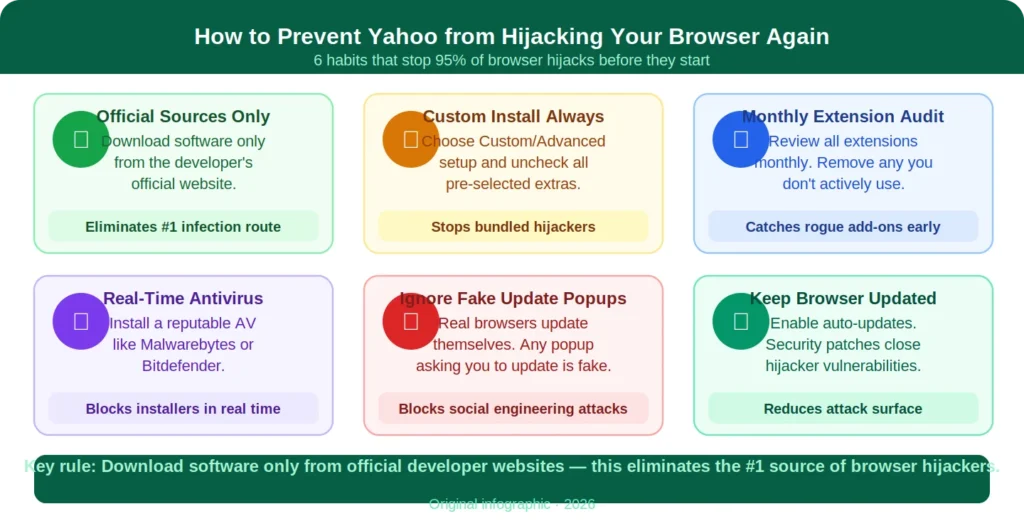
Once you’ve fixed the problem, here’s how to make sure it never comes back:
Download software only from official sources. The single biggest cause of browser hijackers is free software downloaded from third-party sites. Always go to the developer’s official website.
Use Custom install — every time. When installing any software, always choose Custom or Advanced installation rather than Express or Quick. Read every screen and uncheck any pre-selected extras.
Audit your extensions regularly. Set a monthly reminder to review your browser extensions. Remove anything you don’t actively use or recognize.
Keep your browser and OS updated. Security patches in browser and OS updates frequently close vulnerabilities that hijackers exploit. Enable automatic updates.
Use a browser with built-in protection. Brave Browser blocks malicious extensions and scripts by default, making it significantly more resistant to hijacking than standard Chrome.
Install reputable antivirus software. Real-time protection from a reliable antivirus catches and blocks hijacker installers before they can modify your browser settings.
Never click fake “update your browser” pop-ups. Legitimate browsers update themselves automatically. Any pop-up telling you to “click here to update” is almost always malware.
Review notification permissions. Aggressive ad sites sometimes request browser notification permissions and then use those notifications to push fake alerts and download prompts. Go to your browser’s site notification settings and block anything suspicious.
FAQs
Q: Why does my search engine keep changing to Yahoo on Chrome specifically? Chrome is the most targeted browser for Yahoo redirects because of its dominant market share and its sync feature, which can spread a hijack across all your devices. The process to fix it is straightforward: remove suspicious extensions, delete Yahoo from the search engine list, reset Chrome settings, and run a malware scan.
Q: Is Yahoo a virus? No. Yahoo is a legitimate search engine that has been operating since 1995. The problem is not Yahoo itself — it is the browser hijacker or rogue extension that is forcing your browser to use Yahoo without your permission. Yahoo is simply being exploited as the destination for stolen search traffic.
Q: Why does my search engine keep changing to Yahoo even after I change it back? Because changing the setting doesn’t remove the underlying cause. A browser hijacker, rogue extension, or bundled software is actively monitoring your settings and overriding them. You must remove the source first — scan for malware, audit extensions, and uninstall suspicious apps — before the setting change will stick.
Q: Can the Yahoo redirect steal my personal data? Potentially. While the Yahoo redirect itself primarily exists to generate ad revenue, your searches pass through a third-party server before reaching Yahoo. That server can track your search queries, collect browsing data, and expose you to additional malicious redirects. Some hijackers also install secondary payloads capable of more serious data collection. Remove it as soon as possible.
Q: How do I stop Yahoo from being my search engine on my iPhone? Go to Settings > Safari > Search Engine and select Google or your preferred engine. If it keeps changing back, check Safari Extensions under the same menu and remove anything unfamiliar. Also review any apps with unusual permissions under Settings > Privacy & Security.
Q: Does resetting my browser delete my bookmarks and passwords? No. Resetting Chrome, Firefox, and Edge restores startup pages, new tab settings, and extensions to defaults — but preserves bookmarks, browsing history, and saved passwords. Always verify this in the reset confirmation dialog for your specific browser version.
Q: Should I uninstall and reinstall Chrome to fix the Yahoo redirect? Reinstalling Chrome without first removing the malware or rogue extension from your system rarely solves the problem — because the hijacker is on your device, not just in the browser. A reinstall won’t remove an extension or app that keeps reinfecting the browser. Always scan for malware and remove suspicious programs first.
Conclusion
Why does my search engine keep changing to Yahoo? In almost every case, the answer is a browser hijacker, a rogue extension, or software bundled with a free download that is actively overriding your settings every time you try to fix them. Yahoo is not the problem — the unauthorized software exploiting it is.
The fix is a four-part process: scan for malware first, remove suspicious extensions and apps, manually correct your browser settings across every browser and device, and check your browser shortcut for hidden URL modifications. Miss any of these steps and the problem is likely to return.
Going forward, the best protection is behavioral: download software only from official sources, use Custom install to decline bundled extras, keep your browser and antivirus updated, and do a monthly extension audit. These habits eliminate the vast majority of browser hijack risk before it ever reaches your settings.
Related Reading: How to Change Your Default Search Engine in Any Browser | Best Privacy Browsers for 2026
Actionable Takeaways
✅ Run Malwarebytes Free right now — download from malwarebytes.com, run a Full Scan, and quarantine everything it finds. This is the most important single step.
✅ Open your browser extensions page — remove every extension you don’t recognize or actively use. The hijacker is often disguised as a harmless-looking tool.
✅ Check all your browsers — fix Chrome, Firefox, Edge, and Safari. Hijackers often target every browser installed on your device simultaneously.
✅ Delete Yahoo from the search engine list — don’t just change the default; go to “Manage search engines” and permanently delete Yahoo from the list entirely.
✅ Check your browser shortcut — right-click the shortcut, open Properties, and verify the Target field ends cleanly at the browser executable with no URL appended.
✅ Fix every synced device — if you use Chrome sync, repeat the extension audit and settings fix on every phone, tablet, and computer logged into the same Google account.
✅ From now on: always use Custom install — when installing any free software, choose Custom or Advanced setup, read every screen, and uncheck all pre-selected extras.