Introduction
How to set Google as default search engine is one of the most searched browser questions of 2026 — and for good reason. Whether your search engine quietly switched to Bing after a Windows update, got hijacked to Yahoo by a rogue browser extension, or was simply never set up the way you prefer, the fix takes under 60 seconds once you know exactly where to look.
Google holds a 90.04% global search engine market share in 2026. It remains the most comprehensive, widely used search tool available — and knowing how to set Google as default search engine across Chrome, Firefox, Edge, Safari, Android, and iPhone means every search you type goes exactly where you want it to, every single time.
This guide covers how to set Google as default search engine on every major browser and platform in 2026, including what to do when Google doesn’t appear in your browser’s list and how to stop other software from changing it back.
In this guide, you’ll learn:
- How to set Google as default search engine in Chrome, Firefox, Edge, and Safari
- How to do it on iPhone, iPad, and Android
- What to do if Google isn’t showing in your browser’s list
- Why your search engine keeps reverting — and how to stop it
- How to verify the change actually stuck
Related Reading: Why Does My Search Engine Keep Changing to Yahoo? | How to Change Your Default Search Engine
Table of Contents
- How to Set Google as Default Search Engine — Quick Overview
- Why Your Search Engine May Have Changed
- Benefits of Setting Google as Your Default Search Engine
- How to Set Google as Default Search Engine — Step by Step
- How to Add Google If It’s Not in Your Browser’s List
- How to Stop Other Programs from Changing It Back
- Examples and Common Scenarios
- Case Studies
- Best Tools to Protect Your Default Search Engine
- Common Mistakes When Setting Google as Default
- FAQs
- Conclusion
- Actionable Takeaways
How to Set Google as Default Search Engine — Quick Overview
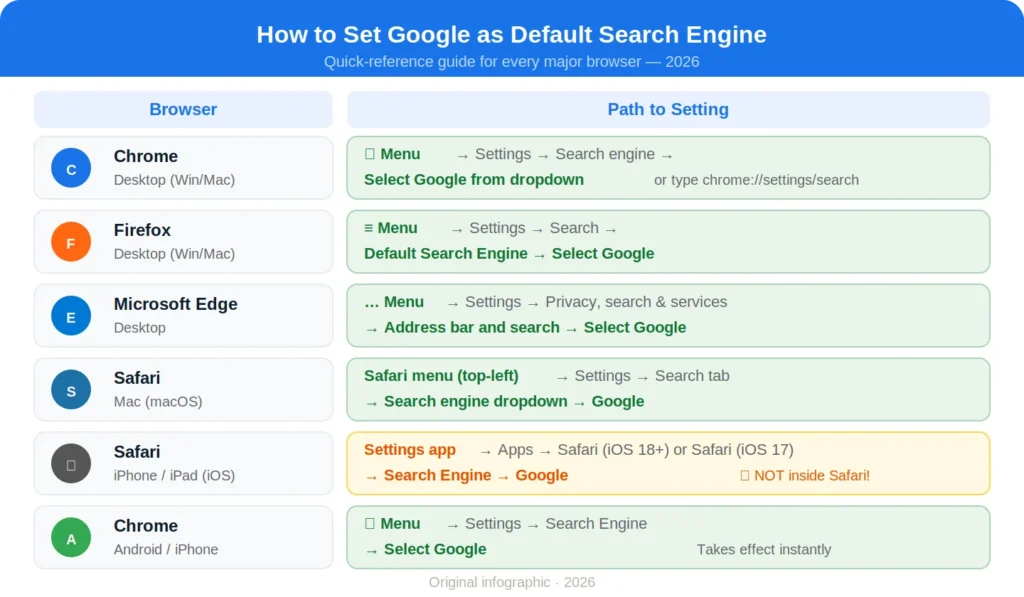
Before diving into the step-by-step instructions for each browser, here’s a quick-reference summary of how to set Google as default search engine on every major platform:
| Browser / Platform | Path to Setting |
|---|---|
| Chrome (Desktop) | ⋮ Menu → Settings → Search engine → Select Google |
| Firefox (Desktop) | ≡ Menu → Settings → Search → Default Search Engine → Google |
| Microsoft Edge | … Menu → Settings → Privacy, search, and services → Address bar and search → Google |
| Safari (Mac) | Safari menu → Settings → Search tab → Search engine → Google |
| Safari (iPhone/iPad) | Settings app → Safari → Search Engine → Google |
| Chrome (Android) | ⋮ Menu → Settings → Search engine → Google |
| Chrome (iPhone) | ⋮ Menu → Settings → Search Engine → Google |
| Brave Browser | ≡ Menu → Settings → Search engines → Google |
| Opera | Opera logo → Settings → Search engine → Google |
| Samsung Internet | ≡ Menu → Settings → Search engine → Google |
Each of these is covered in full detail below with screenshots instructions.
Why Your Search Engine May Have Changed
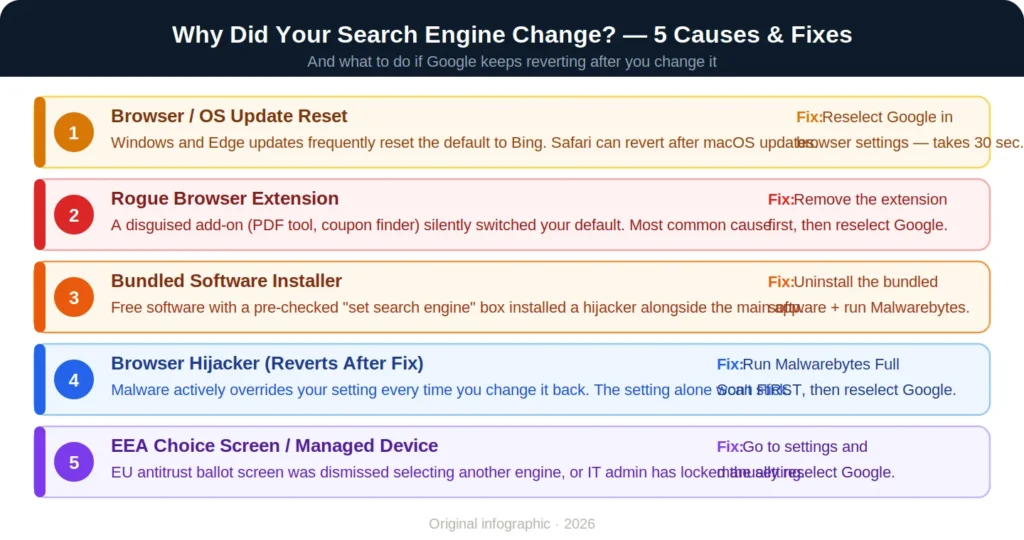
If you’re reading this guide because your browser stopped using Google, the switch almost certainly happened for one of these reasons:
A browser or OS update reset your preferences. Microsoft Edge resets to Bing after major Windows and Edge updates. Safari occasionally reverts to its regional default after macOS updates. Chrome rarely resets on its own, but it can happen after major version upgrades.
A software installer bundled a browser extension. Free software — PDF converters, download managers, media players — frequently bundles browser extensions that silently change your default search engine as part of their “setup.” These are often technically consented to through a pre-checked checkbox most users skip past.
A browser hijacker is overriding your settings. If you change the setting but it keeps reverting, a browser hijacker — a type of Potentially Unwanted Program — may be actively resetting it. In this case, changing the setting alone won’t stick. See the section below on stopping programs from changing it back.
You’re in a managed environment. On corporate, school, or government-managed devices, an IT administrator may have set a policy that restricts which search engines are available. In this case, the setting may be greyed out and can only be changed by your IT department.
EEA choice screen. In the European Economic Area, Chrome and other browsers now present a “search engine choice” ballot screen during setup as a result of EU antitrust decisions. If this screen appeared and a different engine was selected — intentionally or accidentally — that engine became your default.
Benefits of Setting Google as Your Default Search Engine
Understanding how to set Google as default search engine is worthwhile for these practical reasons:
The most comprehensive search index available. Google indexes hundreds of billions of web pages and processes over 5 trillion searches per year. For most queries — especially complex, research-heavy, or current-events searches — Google returns more relevant and more comprehensive results than any other engine.
Seamless integration with Google’s ecosystem. If you use Gmail, Google Drive, Google Docs, Google Maps, or Google Calendar, setting Google as your default search engine means your address bar searches connect directly to the tools you already use. Searching for a restaurant returns Google Maps results. Searching for a file pulls from Google Drive suggestions.
Access to Google’s advanced search operators. Queries like site:example.com, "exact phrase", intitle:keyword, and -excludedterm only work to their full potential in Google. Power users who rely on these operators for research, competitive analysis, or content audits need Google as their default.
AI-powered features. Google’s AI Overviews, which now appear in over 89% of brand-related queries, are only available through Google Search. Users who want AI-generated summaries, cited answers, and Gemini-powered search features need Google as their default engine.
Consistency across devices. Chrome syncs your default search engine across every signed-in device. Set Google once on your desktop and it automatically applies to your laptop, phone, and tablet — as long as you’re signed into the same Google account.
The most reliable local search results. For “near me” queries, restaurant recommendations, business hours, and local directions, Google’s integration with Google Maps and Google Business Profiles consistently delivers more accurate and more detailed results than competing engines.
How to Set Google as Default Search Engine — Step by Step
Here is the complete, verified guide for how to set Google as default search engine on every major browser and platform in 2026.
How to Set Google as Default Search Engine in Chrome (Desktop)
Chrome is made by Google, so setting Google as the default is usually a one-step process. Here’s the full path:
Step 1: Open Chrome on your Windows PC or Mac.
Step 2: Click the three-dot menu icon (⋮) in the top-right corner of the browser window.
Step 3: Select Settings from the dropdown menu.
Step 4: In the left sidebar, click Search engine.
Step 5: Click the dropdown next to “Search engine used in the address bar.”
Step 6: Select Google from the list.
The change takes effect immediately — no restart required. Every search you type into Chrome’s address bar will now go to Google.
Shortcut: Type
chrome://settings/searchdirectly into your Chrome address bar and press Enter to jump straight to this setting.
If Google doesn’t appear in the list: Go to Settings > Search engine > Manage search engines and site search. Click Add next to “Site search,” enter
google.comas the shortcut, and{google:baseURL}search?q=%sas the URL. Then set it as default. Full instructions are in the next section.
How to Set Google as Default Search Engine in Firefox
Firefox defaults to Google in most regions but may have changed due to an extension or update. Here’s how to restore it:
Step 1: Open Firefox and click the three-line hamburger menu (≡) in the top-right corner.
Step 2: Click Settings.
Step 3: In the left sidebar, click Search (magnifying glass icon).
Step 4: Under “Default Search Engine,” click the dropdown.
Step 5: Select Google from the list.
Step 6: The change saves automatically. No restart required.
Note: Firefox does not sync your default search engine across devices — unlike Chrome. If you use Firefox on multiple devices, you’ll need to repeat these steps on each one individually.
If Google doesn’t appear: Scroll to the bottom of the Search settings page and click “Restore Default Search Engines.” This reinstates all the original options including Google. Alternatively, click “Find more search engines” to access Firefox’s add-on directory.
How to Set Google as Default Search Engine in Microsoft Edge
Edge ships with Bing as its default and is deliberately designed to make switching slightly less obvious. Here’s exactly how to do it:
Step 1: Open Edge and click the three-dot menu (…) in the top-right corner.
Step 2: Select Settings.
Step 3: In the left sidebar, click Privacy, search, and services.
Step 4: Scroll down to the Services section and click Address bar and search.
Step 5: Click the dropdown next to “Search engine used in the address bar” and select Google.
Step 6: Optionally, in the “Search on new tabs uses search box or address bar” dropdown, select Address bar — this ensures the address bar (now using Google) handles all new-tab searches as well.
Shortcut: Type
edge://settings/searchinto Edge’s address bar and press Enter to go directly to this page.
Important: Edge may prompt you to confirm or try to suggest keeping Bing. Dismiss any prompts and your selection of Google will be saved.
How to Set Google as Default Search Engine in Safari (Mac)
Step 1: Open Safari and click Safari in the top-left menu bar of your Mac.
Step 2: Select Settings from the dropdown (or press ⌘ + comma).
Step 3: Click the Search tab at the top of the Settings window.
Step 4: Click the dropdown next to “Search engine” and select Google.
Step 5: Close the Settings window. The change takes effect immediately.
Optional: While in the Search settings, you can also uncheck “Include search engine suggestions” if you prefer Google’s results without autocomplete suggestions from Apple’s server.
How to Set Google as Default Search Engine in Safari on iPhone and iPad
On iOS, Safari’s search engine is controlled through the device’s Settings app, not from within Safari itself. This confuses many users who look for the setting inside the Safari browser.
Step 1: Open the Settings app on your iPhone or iPad.
Step 2: On iOS 18 and later: Scroll down, tap Apps, then tap Safari. On iOS 17 and earlier: Scroll down and tap Safari directly.
Step 3: Under the Search section, tap Search Engine.
Step 4: Tap Google to select it.
The change takes effect immediately for all searches made through Safari’s address bar and search bar.
iOS 17+ tip: There is also a separate “Private Search Engine” setting under the same Safari menu. This controls which search engine handles searches specifically in Private Browsing mode. You can set this to Google as well, or choose a privacy-focused engine like DuckDuckGo for private sessions.
How to Set Google as Default Search Engine on Android (Chrome)
Step 1: Open the Chrome app on your Android device.
Step 2: Tap the three-dot menu (⋮) in the top-right corner.
Step 3: Tap Settings.
Step 4: Under the Basics section, tap Search engine.
Step 5: Select Google from the list.
Note: In the European Economic Area, Android Chrome may present a “Search engine choice” ballot screen instead of a standard dropdown. Select Google from that screen.
How to Set Google as Default Search Engine in Chrome on iPhone
Step 1: Open the Chrome app on your iPhone.
Step 2: Tap the three-dot menu (⋯) at the bottom-right of the screen.
Step 3: Tap Settings.
Step 4: Tap Search Engine under the Basics section.
Step 5: Select Google.
How to Set Google as Default Search Engine in Brave
Step 1: Click the hamburger menu (≡) in the top-right corner of Brave.
Step 2: Go to Settings.
Step 3: Click Search engines in the left sidebar.
Step 4: Under “Standard Tab,” open the dropdown and select Google.
Step 5: Optionally, set Google under “Private Window” as well if you want consistency in private browsing.
How to Set Google as Default Search Engine in Opera
Step 1: Click the Opera logo button in the upper-left corner.
Step 2: Select Settings from the menu.
Step 3: Scroll to the Basic section and find Search engine.
Step 4: Click the dropdown and select Google.
How to Set Google as Default Search Engine in Samsung Internet (Android)
Step 1: Open the Samsung Internet app on your Android device.
Step 2: Tap the three-line menu (≡) at the bottom-right.
Step 3: Tap Settings.
Step 4: Tap Search engine under the Use and customization section.
Step 5: Select Google.
How to Add Google If It’s Not in Your Browser’s List
Sometimes — particularly after a browser hijacker has modified your settings — Google may not appear in the dropdown list of available search engines. Here’s how to manually add it back in Chrome, which is the browser where this issue appears most often:
In Chrome:
Step 1: Go to Settings > Search engine > Manage search engines and site search.
Step 2: Under “Site search,” click Add.
Step 3: Fill in the fields:
- Name: Google
- Shortcut: google.com
- URL with %s in place of query:
{google:baseURL}search?q=%s
Step 4: Click Add.
Step 5: Find Google in the list, click the three dots next to it, and select Make default.
Warning: Fake Google entries are sometimes created by browser hijackers. The real Google URL should be
{google:baseURL}search?q=%sorhttps://www.google.com/search?q=%s. If you see any entry with extra parameters, unusual domains, or redirect chains in the URL — delete it. Only trust entries with the clean Google URL shown above.
In Firefox:
Go to Settings > Search > Restore Default Search Engines. This restores all originally bundled search engines including Google.
In Edge:
Go to Settings > Privacy, search, and services > Address bar and search > Manage search engines. Click Add and enter Google’s details as above.
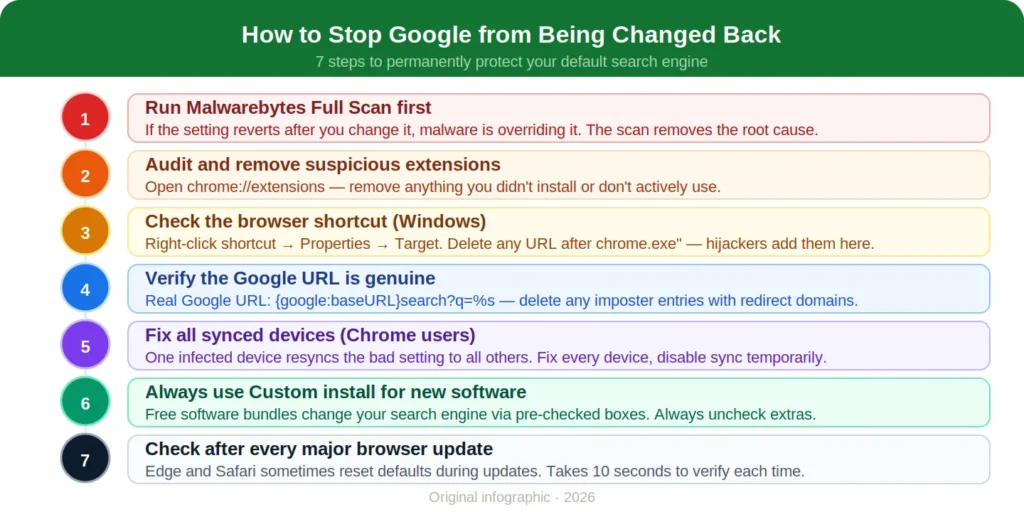
How to Stop Other Programs from Changing It Back
Knowing how to set Google as default search engine is only useful if the setting stays. Here’s how to prevent other software from overriding it:
Run a malware scan. If your default search engine reverts to something other than Google every time you fix it, a browser hijacker is almost certainly the cause. Download Malwarebytes and run a Full Scan. Quarantine everything flagged.
Audit your browser extensions. Open your extensions page (Chrome: chrome://extensions) and remove any extension you don’t recognize or actively use. Rogue extensions are the most common way search engines get changed without user awareness.
Use Custom install for every software download. The majority of unwanted search engine changes come from free software bundled with browser extensions. Always choose Custom or Advanced installation and uncheck any pre-selected extras.
Check your browser shortcut on Windows. Right-click your browser shortcut > Properties > Target field. If anything appears after the closing quote mark in the file path — especially a URL — delete it and click OK.
Keep your browser updated. Browser updates frequently patch vulnerabilities that hijackers exploit. Enable automatic updates.
Disable sync temporarily if the problem persists across devices. If you use Chrome sync and Google keeps reverting across multiple devices, one device may be infected and syncing the bad setting to all others. Fix every device individually, then re-enable sync.
Examples and Common Scenarios
Scenario 1 — Edge defaulted to Bing after a Windows update A user updated Windows 11 and noticed that Edge had switched to Bing as the default search engine. Solution: Open Edge > Settings > Privacy, search, and services > Address bar and search > select Google. Takes 30 seconds.
Scenario 2 — Chrome showed Yahoo after installing a free PDF tool A user installed a PDF converter that bundled a browser extension, silently switching the default to Yahoo. Simply changing the search engine setting back to Google didn’t stick — Yahoo returned after every browser restart. Solution: Remove the rogue extension (Chrome Extensions page), run a Malwarebytes scan, then set Google as default. The fix held permanently.
Scenario 3 — Safari on iPhone reverted after iOS update An iOS update reset Safari’s search engine to the regional default (Bing in some regions). Solution: Settings > Safari > Search Engine > Google. The path is inside the device Settings app, not inside Safari itself — which is why many users can’t find it.
Scenario 4 — Google not showing in Chrome’s search engine list After a browser hijacker removed Google from the dropdown list and replaced it with a fake “Google” entry that redirected through a third-party server. Solution: Go to Manage search engines > delete the fake entry > manually add real Google with URL {google:baseURL}search?q=%s > set as default > run Malwarebytes.
Case Studies
Case Study 1 — The IT Manager Fixing 50 Office Computers
Scenario: An IT manager at a mid-size company noticed that a free screen recording tool installed by several employees had bundled a browser extension that changed Chrome’s default search engine to Bing on approximately 50 machines.
Action: Using Chrome’s enterprise management tools (Google Admin Console), the IT manager pushed a policy setting that enforced Google as the default search engine across all managed devices — preventing extensions from overriding it in the future.
Result: All 50 machines were corrected in a single policy push. The rogue extension was flagged and blocked from installation across the organization. Going forward, employees could no longer have their search engine overridden by third-party software.
Key takeaway: For organizations managing multiple devices, Chrome’s enterprise policy tools let you lock in how to set Google as default search engine across every machine simultaneously.
Case Study 2 — The Blogger Who Kept Losing Google on Safari
Scenario: A content creator who works on a Mac and two iPhones kept finding that Safari’s default search engine had switched back to Bing on her Mac after every macOS update.
Action: She set Google as the default in Safari’s Settings on her Mac and also enabled iCloud sync for Safari. She also changed the setting on both iPhones through Settings > Safari > Search Engine.
Result: The iCloud sync kept the setting consistent across her Mac and iPhones after that. She bookmarked the Safari search settings path as a reminder to check it after every major macOS update, which takes about 10 seconds.
Key takeaway: Safari syncs through iCloud rather than a Google account. Set it on every Apple device separately, and enable iCloud Safari sync to keep settings consistent across your Apple ecosystem.
Best Tools to Protect Your Default Search Engine
| Tool | Purpose | Platform | Price |
|---|---|---|---|
| Malwarebytes Free | Remove browser hijackers that override search settings | Windows, Mac | Free |
| AdwCleaner | Removes adware and PUPs that change browser settings | Windows | Free |
| Brave Browser | Built-in shields block extensions from hijacking settings | All platforms | Free |
| uBlock Origin | Blocks scripts and extensions that attempt setting overrides | Chrome, Firefox, Edge | Free |
| Windows Security | Built-in full scan catches most search hijackers | Windows | Free |
| Bitdefender | Real-time protection blocks hijacker installers before install | Windows, Mac, Mobile | From $29.99/year |
For step-by-step guidance on removing specific browser hijackers, MalwareTips maintains a comprehensive, regularly updated library of removal guides for known browser hijackers. Google’s official “Make Google your default search engine” help page provides the most up-to-date official instructions for every supported browser.
Common Mistakes When Setting Google as Default
Mistake 1: Changing the homepage instead of the search engine Setting your browser’s homepage to google.com is not the same as setting Google as your default search engine. If your homepage is google.com but the address bar search engine is Bing, typing a query in the address bar still sends it to Bing. Both settings are independent and must be updated separately.
Mistake 2: Only changing it in one browser Most people use multiple browsers — Chrome for everyday use, Safari on iPhone, Edge on a work laptop. Knowing how to set Google as default search engine means applying the change in every browser on every device you use, not just your primary one.
Mistake 3: Not checking after browser updates Major browser updates — particularly Edge and Safari updates — sometimes reset the default search engine. Get in the habit of checking the setting after every significant browser update. It takes five seconds.
Mistake 4: Trusting the wrong “Google” entry in the list Browser hijackers sometimes create fake Google entries in your search engine list — entries named “Google” that actually route searches through a third-party redirect server. Verify the URL of any Google entry shows {google:baseURL}search?q=%s or https://www.google.com/search?q=%s. Delete any entry with additional parameters, unusual domains, or redirect URLs.
Mistake 5: Not removing the extension causing the problem first If a browser extension is overriding your default search engine, changing the setting won’t stick unless you remove the extension first. Always audit your extensions before — and after — making the change.
Mistake 6: Looking for the setting in Safari instead of iPhone Settings On iPhone and iPad, Safari’s search engine setting lives in the device’s Settings app under Settings > Safari > Search Engine — not inside the Safari browser itself. This is the most common source of confusion for iOS users trying to set Google as default.
FAQs
Q: How to set Google as default search engine in Chrome? Click the three-dot menu (⋮) > Settings > Search engine > click the dropdown next to “Search engine used in the address bar” > select Google. The change applies immediately. Alternatively, type chrome://settings/search in the address bar and press Enter to go directly to the setting.
Q: How do I set Google as my default search engine on iPhone? Open the Settings app on your iPhone > scroll down to Safari (iOS 17 and earlier) or tap Apps > Safari (iOS 18+) > tap Search Engine > select Google. The change applies to all searches in Safari immediately.
Q: Why did my default search engine change from Google to Bing? This typically happens after a Windows or Edge update, which can reset Edge’s default to Bing. It can also happen after installing software that bundled a browser extension. Fix it by going to your browser’s search engine settings and reselecting Google. If it reverts repeatedly, a browser hijacker may be involved — run Malwarebytes.
Q: How do I set Google as default search engine if it’s not in the list? In Chrome: go to Settings > Search engine > Manage search engines and site search > Add. Enter “Google” as the name, “google.com” as the shortcut, and {google:baseURL}search?q=%s as the URL. Click Add, then set it as default. In Firefox: go to Settings > Search > Restore Default Search Engines to bring Google back.
Q: Does setting Google as default in Chrome sync across all my devices? Yes — Chrome syncs your default search engine across all devices signed in to the same Google account, as long as sync is enabled. Edge does the same when Microsoft account sync is enabled. Safari syncs through iCloud. Firefox does not sync the default search engine across devices.
Q: Will setting Google as default affect my privacy? Google collects and uses search data for advertising and product improvement. If privacy is a concern, privacy-focused alternatives like DuckDuckGo or Brave Search don’t collect search history. However, for most users whose priority is search quality and Google ecosystem integration, Google remains the most practical default.
Q: How do I stop my search engine from changing back to Yahoo or Bing automatically? If your search engine keeps reverting, a browser hijacker or rogue extension is likely overriding your settings. Steps to fix it permanently: (1) Run Malwarebytes Full Scan, (2) remove suspicious extensions from your browser, (3) uninstall any recently installed software you don’t recognize, (4) set Google as default again. The setting should now stay.
Conclusion
Knowing how to set Google as default search engine is one of the simplest and most immediately useful browser customizations available. On most browsers it takes under 30 seconds — and the steps are nearly identical across Chrome, Firefox, Edge, Safari, Brave, and Opera.
The key things to remember: on iPhone and iPad, the setting lives in the device’s Settings app, not inside Safari. On Edge, the path is slightly deeper than on Chrome — Privacy, search, and services > Address bar and search. And if the setting keeps reverting, the problem isn’t the setting — it’s a browser extension or hijacker that needs to be removed first.
With Google set as your default, every search you type in the address bar connects you to the world’s most comprehensive search index, Google’s AI-powered features, and seamless access to the Google tools you already rely on.
Related Reading: Why Does My Search Engine Keep Changing to Yahoo? | What Are SEO Keywords? The Proven Guide
Actionable Takeaways
✅ Do it right now — open your primary browser, go to Settings > Search engine, and confirm Google is set as the default. It takes 15 seconds.
✅ Check every browser you use — Chrome, Firefox, Edge, and Safari each have separate settings. Fix all of them, not just your main browser.
✅ On iPhone: go to Settings > Safari > Search Engine — not inside the Safari app. This is where iOS stores the setting.
✅ After any browser or OS update, check the setting — Edge and Safari both sometimes reset the default search engine during major updates. Make it a 10-second habit.
✅ If the setting keeps reverting: remove extensions first — open your extensions page and remove anything you don’t recognize before trying to change the setting again.
✅ Run Malwarebytes if the problem persists — a browser hijacker is almost always the cause of a default search engine that reverts despite manual corrections. A free full scan resolves it in most cases.
✅ Verify the Google entry is genuine — the real Google search URL is {google:baseURL}search?q=%s. Delete any imposter entries with extra parameters or unusual redirect domains.